Auto-collect·On-device OCR·Search anytime

Every screenshotnow searchable

Capture as you always do; it’s collected for you. Later, remember a few words from the image, find it, and drag it straight out to use.

Basic features free forever · Try Pro features free for 7 days · No account neededWatch the 30-sec demo

  • 9.5 MBdownload
  • 14-dayRefund if it doesn’t suit your needs
  • Pay onceno subscription
  • 95features

Notarized by ApplemacOS 13+ · Apple Silicon & Intel · Windows 10 / 11

FinderFileEditViewWed 10:24
That invoice from three days ago… where is it?
Preview
On-device OCR · 2 hitsImage never uploaded
Mr. Wang
Send me the quote and the invoice
And that error screenshot too

● Live demo Scattered screenshots are collected → found by the text inside · UI mirrors the real app

Find it by the words

2,290 screenshots, find the one

When you need it,
all you remember is a phrase.

invoice3 hits · on device · nothing uploaded
0stepsCaptures go straight to the shelf
no saving, no sorting
3placeswhere text is searchable
images · video frames · PDF body
20secForgot to record?
one key saves the last 20 seconds
1timePay once, no subscription
works without internet
95featurescapabilities
capture, search, recording, clipboard
80+file typescan be shelved
PDF, spreadsheets, archives
Try it now

Take one of your own screenshots,
and see for yourself.

Recognition runs in your browser; the image never leaves this computer. The first run loads a ~15 MB recognition component; the installed app uses the system's on-device OCR, which is much faster and more accurate.

⤓
Drop it in, paste with ⌘V, or click to choose a screenshot PNG / JPG · never uploaded · search the text as soon as it's read
From found to in use

Less digging.
More at hand.

Quotes, reference images, invoices, what you just did.
When you need them, they're right there.

  1. Collectinto the shelf as you capture
  2. Searchby the text in the image
  3. Protectwatches out for you
  4. Recordrecord what already happened
01CollectAuto-collect

No saving, no dragging.
Capture, and it's shelved.

  • System screenshots, images copied from chat apps, fresh recordings: all shelved automatically
  • PDF, Excel, archives and 80+ file types: drop them in too
  • Stored as plain PNG / MP4, visible and copyable in Finder
WeChat copied image
QQ copied image
Feishu copied image
⇧⌘4System screenshot
●Fresh recording
SnipocketToday +6
02SearchScreenshot OCR · search by words

Find the quote,
drag it to a colleague.

  • Remember a few words from the image to find it; file names and pinyin work too
  • Images, video frames and PDF text all match; video jumps to that second
  • Drag the result into a chat or document: no saving, no searching twice
Mr. Wangjust now

Send me yesterday's quote, please

2026 Q3 channel partnership quote

Total ¥108,756

✓ Sent · just drag it out

2026 Q3 channel partnership quote

Total ¥108,756

03Protectwatches out for you

It watches for codes,
and masks sensitive details.

  • Capture a verification code and a banner pops up: one click to copy
  • Phone, ID and card numbers detected automatically, masked in one click, original untouched
  • Card numbers are masked only if they pass Luhn; password-manager copies are never recorded
Snipocket · verification code found

284917 Copied — just paste

✓ Copied
Order chat screenshot.png
RecipientMs. Wang
Phone138 2244 9976
ID no.3101 0419 9602 0845 27
Card no.6222 0212 3344 1122
RedactedOriginal
Phone ×1ID ×1Card ×1
Copy to clipboard
Extract text
Copy redacted image
Cut out subject

Pin to desktop
04RecordHappens first, recorded after

Already happened?
Just rewind it.

  • A rolling buffer in memory keeps the last 10 / 20 / 30 seconds
  • A bug flashed by, or you forgot to record: ⇧F2 saves what just happened
  • Off by default; when on, it only buffers while plugged in
Picture-in-picture, key overlay, trimming, GIF… everything recording can do ↓
flashed by

$ ./deploy quote-api --prod

✓ 42 migrations applied

✓ pod 1/3 ready

⚠ Payment worker crashed

NullPointerException at settle():214

$ _

Memory buffer · always rollinglast 20 s
⇧F2Save replay
Replay-just-now.mp40:20 · on the shelf · frame text searchable
Pins free · clipboard core free

Pins and clipboard,
the two you use most.

Pins are entirely free; clipboard text history and paste-back are free. Auto-shelving chat images and searching by text in images are Pro.

05PastePinsAll free

Pin it in view,
work from it.

Capture, press ⌘T and it floats on top at exact 1:1 size. Fill forms, check numbers, copy settings without switching windows.

  • Click-through: pinned, but never in the way
  • ⌥⌘P hides every pin at once; press again to bring them back
  • Text pins: pin a passage as a sticky note
  • Restore past pins in one click; built-in color picker
Expense claim · editing
Xinghui Culture · Q3 channel deal
¥108,756
4420
Q3 partnership quote.png1:1
2026 Q3 channel quotesheet
Creative & design¥38,000
Channel execution¥64,600
Total¥108,756
Click-through⌥⌘P show/hideScroll to zoom
The action has already happenedText pin · note
#5B5BD6
06ClipboardClipboard CenterText history free

Everything you copy,
remembered for you.

Every text and image you copy is saved automatically with its source app icon. Search by a few words or pinyin, select a result, and press ↵ to paste it straight into the window you were using.


  • Text goes to history automatically; images copied from chat apps go straight to the Shelf Pro
  • Source app icons, pinyin search, ↵ to paste into the previous app
  • Snippets: save replies, signatures, commands, with variables Pro
  • Sequential paste, paste variants, merge copy Pro
  • LAN sync: copy here, paste on another machine Pro
fp|Search by pinyin too
Filter by source app
Billing: Xinghui Culture Media Co., Tax ID 91330…WeChat · 10:21
↵
const resp = await fetch(`/api/invoice/${id}`)VS Code · 10:14
order-chat.pngImage · WeChat · 10:08 · on the Shelf
https://admin.example.com/orders/SNP-2481Chrome · 09:58
kubectl rollout restart deploy/quote-apiTerminal · 09:40
Snippets
Hello, here is this month’s statement. {日期}Snippet · variable
⌘1
↵ paste back to WeChat · last windowShift ↵ sequential paste
Within reach

Open it when you need it, tuck it to the edge when you’re busy.

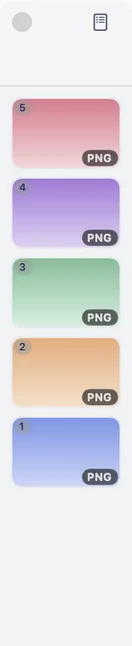
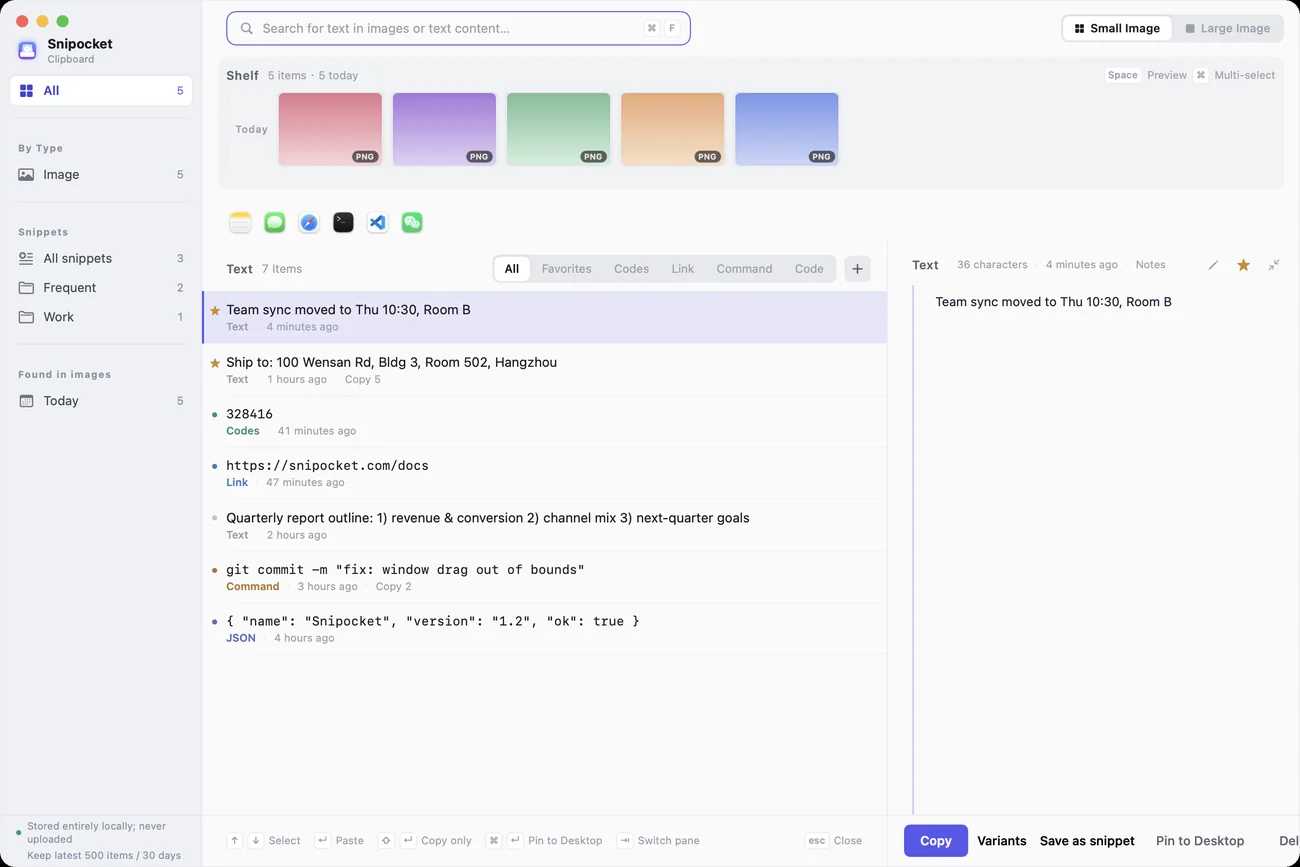
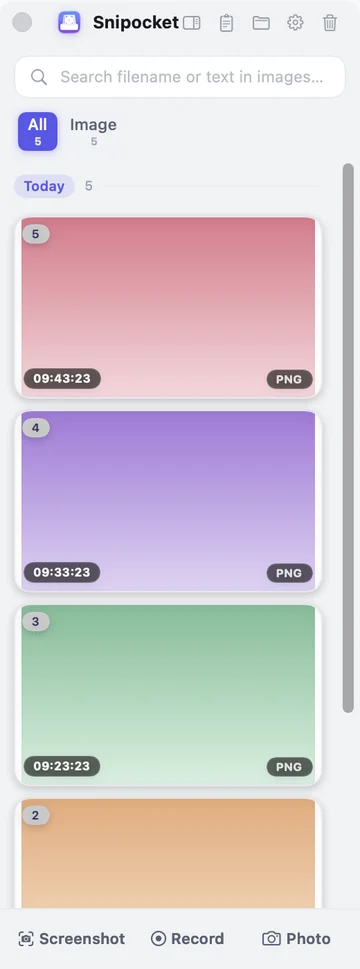
One shelf, three views: Clipboard Center shows everything on one screen, the Shelf waits at the edge, Compact shrinks to a thin strip. The data is always one set.
FinderFileEditViewWed 10:24
Q3 channel review.key
Q3 channel review
Snipocket Clipboard Center: clipboard history and screenshot text search Snipocket Shelf: screenshots collected automatically, drag to use Snipocket Compact: a 96 pt screenshot strip Clipboard CenterImages, files and every piece of text you copied — one screen, searchable by words.Real screenshot

5 built-in skins · freeGraphite & PaperCeladonNight FlightTerracottaInk Bamboo

Recording · GIF

Press once to record,
trim right after.

Camera, audio and keystrokes go in at once; forgot to press? Rewind 20 seconds.

● Real recording Instant Replay → key overlay → smart zoom → direct GIF · 33 s

01BeforeCamera · photo · audioPiP illustration
Region / full screen⌘F2Camera PiP⌥⌘CPhoto⌥⌘BSystem audio + mic mix
02Duringso viewers can follow▶ 33 s
Key & click overlayDraw while recording⌃⌥BDirect GIF⌥⌘GInstant Replay⇧F2Pause / resume
03Afterno second app▶ 58 s
TrimExport frame · to GIFSmart zoomBeautify exportSearchable video text
01BeforeCamera · photo · audioSee PiP illustration
  • Region / full screenDrag a box, or the whole screen⌘F2
  • Camera PiPRound or square, recorded wherever you drag it⌥⌘C
  • PhotoPhotos go straight to the shelf; cut out the subject⌥⌘B
  • AudioSystem audio + mic, mixed into one track
02Duringso viewers can follow▶ Watch
  • Key & click overlayKeys on screen, ripples where you click
  • Draw while recordingCircle things as you record; fades after 3 s⌃⌥B
  • Direct GIFDrag a box, get a GIF⌥⌘G
  • Instant ReplayPress afterwards — the last 20 s are still there⇧F2
  • Pause / resumePauses are cut from the final clip
03Afterno second app▶ Watch
  • TrimTwo drags to cut the head and tail
  • Export frame · to GIFSave the frame you're on, or convert the whole clip
  • Smart zoomZooms in on where the mouse is working
  • Beautify exportGradient background, rounded corners, shadow
  • Searchable video textA hit jumps straight to that second

All part of the full version · nothing you recorded is deleted when the trial ends

Hands-on

This isn't a video.
You can click it.
Have a look,
then try it on your computer.

Six scenarios, with the same gestures as the app.Click any tile to try it; the data is demo data.Tap any tile to watch it large; open on a computer to try it hands-on.

01

Drag a box, draw right there.

Press F1 to select; a single click snaps to a whole window. Release and the toolbar is right by the selection: arrows, text, numbers, redaction… Hit ↵ to shelve it, or pin it to the desktop, or extract its text.

F1ScreenshotClicksnap to window⌘ZUndo↵Save to ShelfEscCancel
SafariFileEditViewThu 15:31
🔒 admin.example.com/orders/SNP-2481

Order SNP-2481

Placed 2026-09-24 14:02 · Paid

Recipient

Ms. Wang

Phone

138 2244 9976

ID no.

3101 0419 9602 0845 27

Address

Room 502, Bldg 3, 100 Wensan Rd, Hangzhou

ItemQtyamount
Noise-cancelling headphones Pro · Space Gray3¥3,897.00
2-year extended warranty1¥199.00
Total¥4,096.00
Drag a region · click to snap a window · Esc to cancel
Snipocket
Try: select the order details, mask the phone number with “Redact”, then click “OCR” to extract the text; or select the QR code and click “QR”.
02

What matters, pinned in view.

A mockup, a spec, a number you need to copy — pinned above every window at 1:1. A color or a snippet of text can be pinned too.

DragmoveScrollzoom⌥ scrollopacityDouble-clickshrink to thumbnailRight-clickmore⌥⌘Pshow / hide all
TextEditFileEditFormatThu 15:08
Release checklist v1.0.5.md

Release checklist · v1.0.5

Check against the spec pinned on the right, then ship.

Try: right-click a pin and choose “Click-through”, then tick the checklist underneath it.
03

Within reach, drag to use.

Everything you captured or saved waits at the edge of the screen. Type to search the text inside, Space to preview, drag straight into a chat to send.

Typesearch image textSpacepreview ←/→Drag outsendRight-clickmoreDrag left edgeresize▥Compact view
WeChatFileEditWindowThu 15:12
Design review (6)
Chen

Anyone still have that Q3 conversion chart?

Wang

And the August invoice — finance is asking 🙏

Drag an image from the Shelf here to send it
←/→ browse · Space to close
Try: search “invoice”, drag the result into the chat on the left; or right-click an image and “Pin to desktop”.
04

One set of data, three views.

The first icon in the Shelf title bar switches to Compact, the second opens Clipboard Center. Whichever view a new capture arrives in, it's in the other two instantly.

▥Compact view▤Clipboard Center⌥⌘SShow / hide Shelf⌥⌘TClipboard CenterCapture / record / photoadd to it
FinderFileEditViewThu 15:36
Weekly meeting

Switch the shelf between views and see that the data is the same.

Snipocket · Clipboard Center⌥⌘T
AllBy typeImagesVideo

Shelf · same data as on the right

Code284917
Linkhttps://snipocket.com/docs
Commandgit switch -c feature/clip-hub
TextMeeting moved to Thu 10:30, Room B
One set of data
05

Drag a box, press, and it's recording.

Record a region or the full screen; camera PiP, key overlay and drawings all go into the clip. It lands on the shelf when you stop — trim, export a GIF or auto-zoom right away.

Selectregion recordingF2Full screen⇧GGIF⇧F2Save last⌃⌥BDraw while recordingDrag / scrollcamera
SafariFileEditViewThu 15:20
🔒 shop.example.com/checkout

Noise-cancelling headphones Pro

$189 · Space Gray

1
⚠ Payment failed: NullPointerException at settle():214
Drag the region to record; release to start
Recording00:00
Snipocket
recording.mp4
06

Everything you copied, all right here.

Clipboard Center keeps the text you copy and its source app. Search by words or pinyin; ↵ pastes into the previous app and ⌘↵ pins the text to your desktop. Convert its format before using it.

↑↓Select↵paste⇧↵copy only⌘↵Pin to desktop⌘1–9paste directly⌘ clickmulti-select
NotesFileEditFormatThu 15:26
Notes

Thursday to-do

Send finance the August invoice

Check the display adapter in Room B

|

SnipocketClipboard Center
● Stored locally, never uploaded
Keeps the last 500 items / 30 days
⌘F
↑↓Select↵paste⇧↵copy only⌘↵Pin to desktopescClear search
Try: search “yzm” to find the code; ⌘-click three items then “Paste in sequence”; pick the JSON item and “Variants → JSON → YAML”.
The basics, done properly

Capture it whole. Edit it fast.
Share it safely.

Everyday tools, without opening a second app.

Scrolling capture, auto-stitched

Scroll a web page or chat to the end; sticky headers are kept once.

Sticky nav
Section 5 · Features
Section 6 · FAQ
Section 7 · Changelog

Annotate, redact, watermark — one toolbar

Draw right after capturing. Annotations are layers: undo and re-edit anytime.

RedactWatermarkBackground beautifyCut out

Keep files in the Shelf. Search their contents.

PDF, Office and archives become file cards; invoices are filed automatically.

PDFAugust invoice.pdf2.1 MB
XLSXChannel data.xlsx48 KB
ZIPPoster assets.zip36 MB
Across devices · LAN transfer

Copy on one Mac, paste on another.

Peer-to-peer on the same network, no server in between, end-to-end encrypted; manual send by default. Works between Mac and Windows.

Small tools you’ll use every day.6 useful extras

See all 95 →
PROOne-click cutout

Right-click “Cut out subject”; on-device segmentation saves a transparent PNG copy to the shelf (macOS 14+)

Text pins

Pin a piece of text as a floating note; scroll to resize, double-click to copy

Quiet mode

No panel after capturing, still collected; ⌥⌘P shows / hides all pins

URL Scheme

snipocket:// with 15 actions — trigger from Raycast, Alfred, Shortcuts or Stream Deck

PROQR & barcode reading

Read QR codes and barcodes in the editor; links open directly

PROText transforms

Transform before pasting: URL / Base64 / timestamps / JSON ↔ YAML, all local

Fifteen keys. Every shortcut at hand.

Defaults come from the app itself and every one can be changed in Settings; rarer actions use the snipocket:// URL scheme instead of a key.

F1Screenshotselect → annotate → shelve
⌥⌘SShow / hide panel
⌥⌘TClipboard Center
⌥⌘LScrolling capture
⌃⌥DCustom / timed capture
⌥⌘RCapture last region
F2Record full screenincludes the lead-in when Replay is on
⌘F2Record region
⇧F2Save replay
⌥⌘PShow / hide all pins
⌥⌘VMini paste bar
⌥⌘BPhoto (camera)
⌥⌘GRecord region as GIF
⌥⌘CCamera PiP
⌥⌘KColor picker

While selecting:Clicksnap window · ⌥pick control · Lscrolling · Rlast region · Ccolor · Grecord region · ⇧Gregion GIF · ↵save to Shelf · EscCancel

Developers · URL scheme automation

Out of hotkeys?
One link is all it takes.

Snipocket registers snipocket://, so Raycast, Alfred, Shortcuts, Stream Deck or a one-line terminal command can drive it. Click a command on the right.

Any web link can fire a custom scheme, so recording and clearing are never exposed; you can switch the whole thing off in Settings.

Terminal — zsh

# click a command above to see how Snipocket responds

Demo video · under 7 minutes

Seven minutes to see a whole day of use.

All recorded on a real machine; click any chapter to jump.

At hand, and on your machine

Your work files
stay on your computer.

Recognition, search and redaction all run locally.
No account; works offline.

Privacy notes ↗
0images uploaded automatically
0accounts to sign up for
1switch to
fully offline mode

The Mac build from this site is notarized by Apple · screenshots are plain PNG / MP4 files you can open and copy in Finder

See the full specs and defaults →OCR engine · index scope · storage location · retention · every default

Who it's for

Devs hunt errors, finance hunts invoices.
What do you hunt?

Different words, same two keystrokes to get there.

DeveloperNullPointer

That error dialog from three days ago

Text in terminal screenshots is searchable

Tester / QAcrash

The crash you can't reproduce

Instant Replay rewinds the 20 s before it

Ops / SREkubectl

The command you changed at 3 a.m.

Clipboard history, searchable

Product managercompetitor

A competitor's full-page flow

One scrolling capture to the end

Designermockup

Last week's reference

Pin it at 1:1 to compare

Finance / expensesinvoice

Every invoice this month

Screenshots and PDFs grouped automatically

Support agentCode

The code that just arrived

One click from the banner

Marketingconversion

That dashboard screenshot

No saving, it's shelved

Salesquote

The quote you sent a client

Auto-redacted before sending

Legalpenalty

That clause in the contract

PDF body text is searchable

HR / adminonboarding

Onboarding forms and notice templates

ID numbers masked in one click

Student / researcherpaper

That page in a paper

Select text in the image and quote it

Teacherslides

The frame where you explained it

Search a word, jump to the frame

Streamer / gamerreplay

That play you just made

One key saves the last 20 s

Creatorcover

The image you're about to post

Auto-redact + gradient beautify

Translator / editorSource

That foreign text in an image

Multilingual OCR, select to grab text

All features · 95

Ninety-five features,
on one page.

Every feature, and what’s free: unmarked items are free forever; items tagged “Pro” need activation after the free trial (nothing is deleted); ★ marks a core Snipocket feature, also included in Pro.

95 features
vs Snipaste / PixPin

Free screenshot tools are great,
but they stop at capturing, and leave finding to you.

They capture, pin and annotate very well, and so does Snipocket. The difference starts after the capture.

The taskTypical screenshot toolsSnipocket
Capture, pin, annotate, scrolling captureAll done wellAll there, plus auto-collected
Find that image three days laterFlip through one by oneType two words from the image, doneCore
Text that appeared in a videoCan'tJumps to the exact frameCore
PDF and Office filesNot collected80+ types collected, body text searchable
Redact before sharingPaint over by handDetects phone and ID numbers, masks in one clickCore
RecordStarts when you press recordRewinds and saves what just happenedCore

Based on the public versions of each tool as of September 2026. Everything in the Snipocket column is available in the app; “rewind and save” requires Instant Replay, which is off by default.

Try it first. Decide later.

Free for everyday use.Pay once for more.

7-day full trial, no account. When the trial ends it simply becomes the free version.

Free

¥0free for good

Everyday screenshots, done

  • Capture and annotate
  • Pin to desktop, color picker
  • Clipboard text history
Download free

Same installer; without a license it stays the free version

Recommended

Personal

¥69One-time purchase

Screenshots shelved automatically, found by a search

  • Everything in Free
  • Auto-collect; search text in images and videos
  • Instant Replay: save the moment you just missed
  • Scrolling capture, screen recording, GIF, camera PiP
  • One-click cutout, transparent background ready to use (Mac 14+)
  • Smart redaction, text extraction, QR recognition
  • Custom skins, screenshot background beautify
  • Clipboard snippets, paste in sequence, mini paste bar
  • For one person · up to 3 devices
Buy now

New here? Download and try everything for 7 days

Works on Mac and Windows · 14-day refund

Multi-user licenses

¥2595 people, pay once

For your team; each person uses their own

  • Same features as Personal
  • 5-pack: 15 devices, 10-pack: 30 devices in total (about 3 per person)
  • 10-person pack ¥459

For studios and small teams

  • No subscription
  • Data stays on your machine
  • Your data stays after the trial
  • Never charged automatically
Payment or activation trouble: support@snipocket.com
FAQ

Before you
download.

Can't find your answer? Write to support@snipocket.com — we usually reply within a day.

Read the manual →
What happens to my screenshots and files when the trial ends?

Nothing is deleted. Only the advanced features lock; everything already collected — screenshots, recordings, files — stays visible and usable, and activation restores the features instantly. Basic capture and annotation (including copy / save as) are free forever.

What exactly does “fully local” mean?

Capturing, recording, OCR indexing, document indexing, search and redaction all happen on your computer; no image or file is uploaded automatically. The app may go online to check for updates, verify activation, or send feedback you choose to submit. In “Fully offline mode” the only network action left is a manual “Check for updates”.

Are the Mac and Windows versions the same?

The core is the same: auto-collect, OCR search, annotation, pins, scrolling capture, recording and Clipboard Center are on both. The few differences that depend on OS capabilities are noted in the manual (for example, cutout needs macOS 14+). One license key works on both, and both versions are free to download and try.

How many computers per license? What if I switch machines?

Personal is for one person on up to 3 devices, any mix of Mac and Windows. The Team 5-pack covers 15 devices in total and the 10-pack 30 (about 3 per person), on a single key for your team only. When you retire a machine, unbind it yourself in the activation window (once per 90 days per key) and the seat frees up immediately.

How do I get my key after paying? Can I get a refund?

After payment, your activation code appears on this page. International purchases also receive a copy by email. Paste the code into the app to unlock. Try before you buy: the 7-day full-feature trial requires no payment or account. If the app does not suit your needs, email support@snipocket.com within 14 days of purchase, explain the issue, and receive a full refund.

Do I need to install anything extra for Chinese OCR?

Nothing. Recognition for English, Chinese and other languages is built in — install and go, fully offline. The interface is available in 30 languages.

Will it drain the battery if it's always running?

It sits quietly in the background. Text recognition runs once, only when a new image or file enters the shelf; recordings are scanned by frame changes, so static frames aren't re-processed. Instant Replay is off by default and only buffers the last 20 seconds once you turn it on.

Why does it need Screen Recording and Accessibility? My first capture did nothing — why?

Screen Recording is what macOS requires of every screenshot and recording app; without it nothing can be captured. Accessibility is used in only two places: pressing Return in Clipboard Center to paste back into the original window, and holding ⌥ while capturing to snap precisely to control edges; capture and search work without it. If your first capture did nothing, it's almost always the permission: open System Settings → Privacy & Security, enable Screen Recording, and capture again.

Why pay, compared with Snipaste / PixPin?

They are excellent screenshot tools. What Snipocket adds is the whole chain after the capture: auto-collect, search by the text inside (videos included), code banners, smart redaction, Instant Replay. If your screenshots are work material, that's when Snipocket is worth it.

Is a Mac App Store purchase the same license as one from this site?

No — the two channels are separate and not interchangeable. Buying here gives you a license key for the direct-download build (macOS / Windows); the Mac App Store version unlocks through in-app purchase and only within that version.

Snipocket icon

Your next screenshot
will always be findable.

Nothing to learn after installing: capture as you always do and leave the rest to the shelf.

1Drag to Applications9.5 MB, notarized by Apple, double-click to open
2Allow Screen RecordingmacOS asks once; capturing needs it
3Press F1 to captureIt's already on the shelf, text recognized

Basic features free forever · Nothing is deleted when the Pro trial ends

v1.1.0 · macOS 13+ (Apple Silicon & Intel) · Windows 10 1809+ / 11 (x64)